
Getting started
With eBooking, you can make allocated bookings as well as ad hoc freesale shipments. Making an ad hoc freesale booking online is easy and you can expect to complete your booking in under two minutes – whether you’re flying your cargo on IAG Cargo’s airlines, or freighter and trucking networks.
Online booking is available for Perform, Prioritise, Constant Fresh and Constant Climate Passive products.
For other products, please contact your local sales team, where available.
Please read our FAQs for more information.
To get started, click on ‘Account’ in the top right.
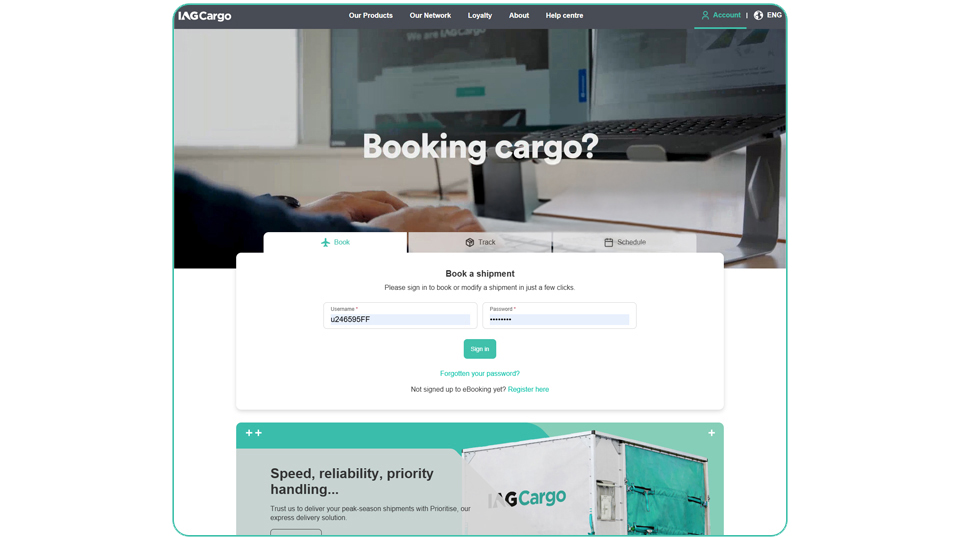
Once you are on the ‘Login’ screen, enter your ‘Username’ and ‘Password’.
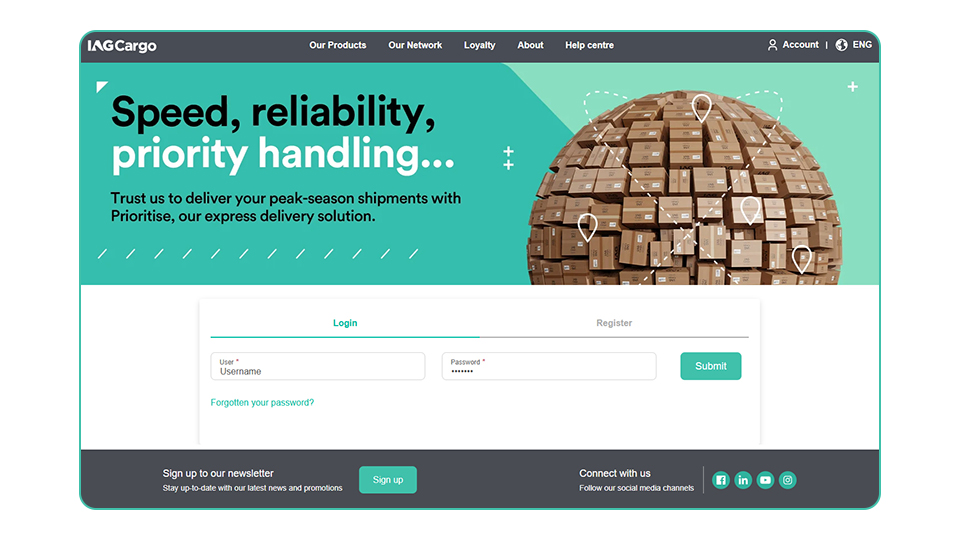
If you do not have login details, you will need to register for an account.
To create an account, click ‘Register’ and complete the short form.
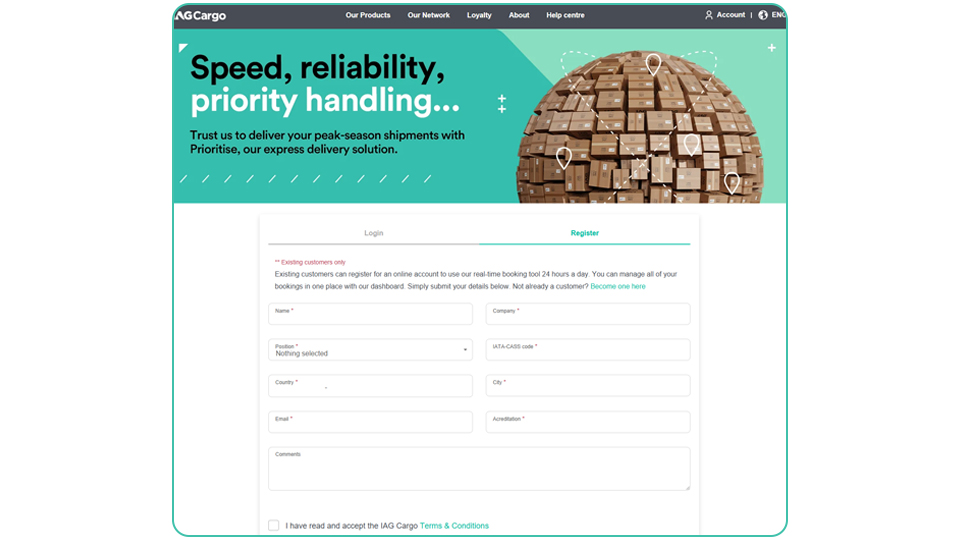
Once submitted, you’ll receive your login details from our automated service within 48 hours.
If you do not receive an email, please check your ‘junk’ folder as your username and password could have ended up there by mistake. You can only register for eBooking if you are an existing IAG Cargo customer.
If you have any questions about your IAGCargo.com login, please contact helpcargo@iagcargo.com.
Your account
Once you have logged in, you will see four options: Make a booking, Manage bookings, Shipment support, and Manage account (the latter will be available later this year).
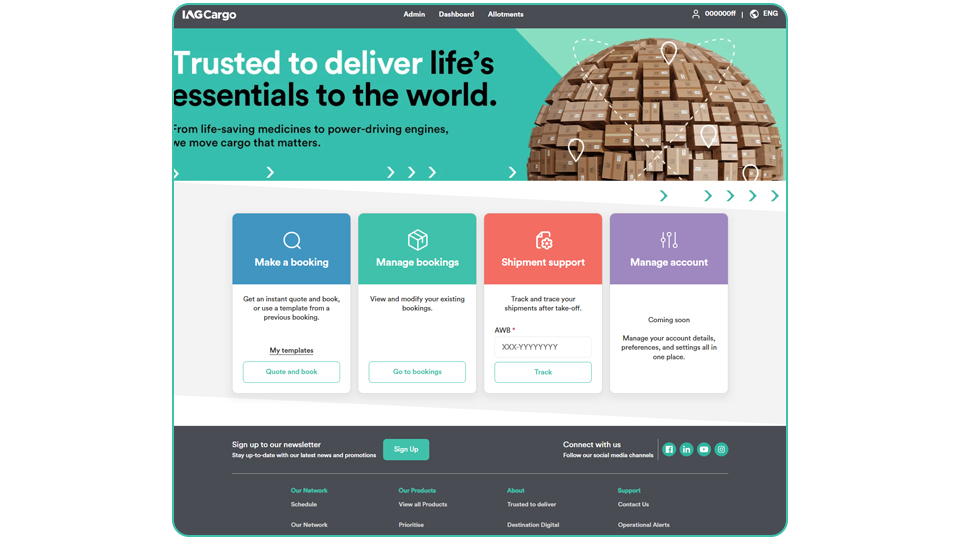
Bookings dashboard
View all your upcoming bookings before departure.
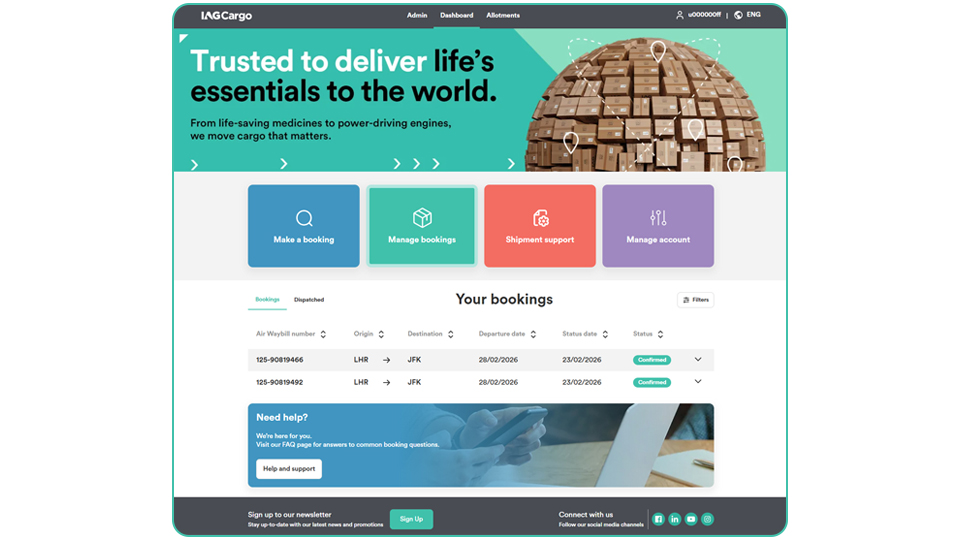
The dashboard is fully integrated with our live system, giving you complete visibility of all bookings under your account - regardless of which channel they were created in or who made them. This means you can see and manage your bookings in one place, including those made offline or through a third-party platform.
Use the filters to quickly find and manage your bookings before departure.
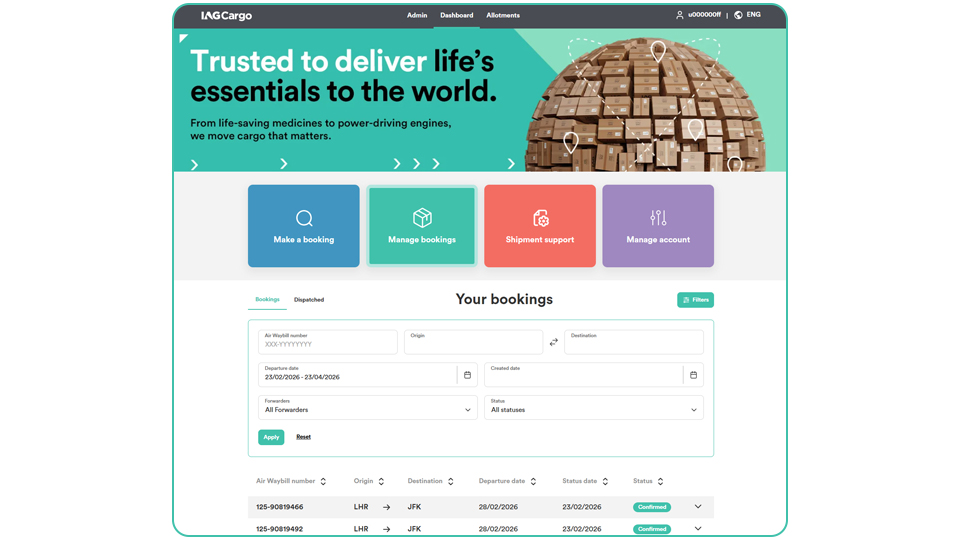
Air Waybill number – Search for a specific booking.
Origin / Destination – Select your departure and arrival locations from the dropdown options. Free text is not allowed, so be sure to click one of the available options.
Departure date – Choose a date range for upcoming shipments.
Created date – Find bookings by creation date.
Forwarders – Filter by forwarder.
Status – View bookings by their current status.
Click Apply to activate the filters or Reset to clear them.
Making a new booking
Start by clicking ‘Quote and book’ in the Make a booking section.
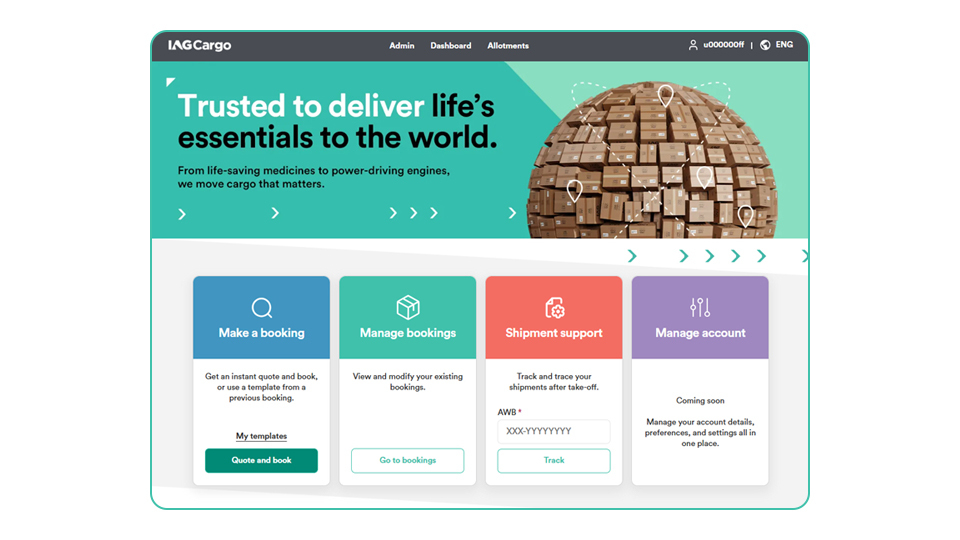
You will then be taken to our eBooking platform, where you will find the Shipment Information page.
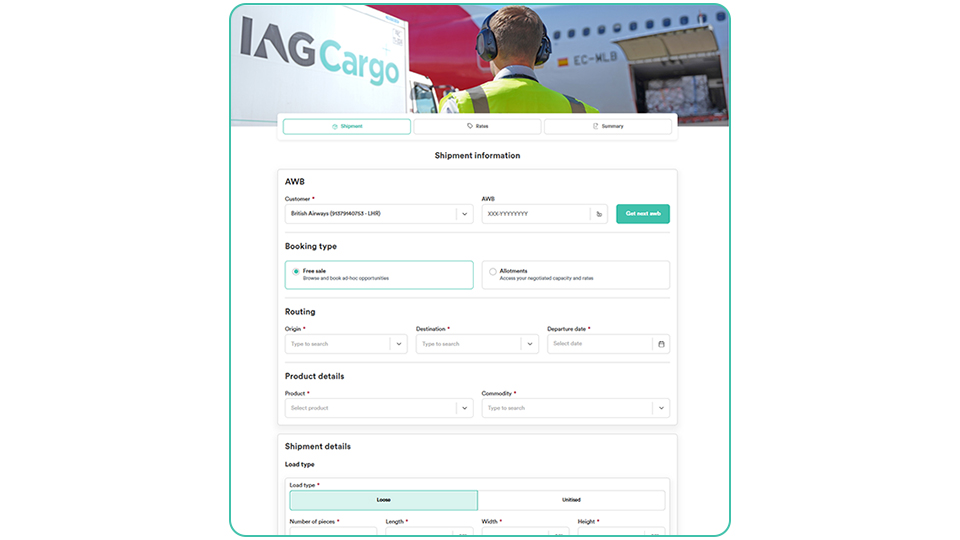
AWB
Entering an AWB is optional at this stage. If you would like to add one, you can either:
Enter an AWB in the format ‘125-0000000’ or ‘075-0000000’, or
Select the ‘Get next AWB’ option to retrieve one of your available AWBs.
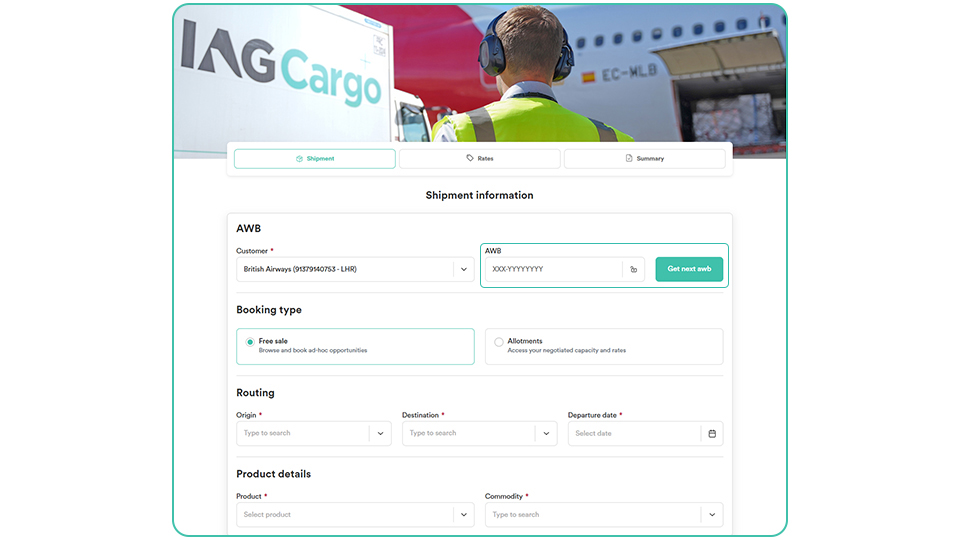
Once an AWB has been used, the padlock icon will lock, and you will have 15 minutes to complete the booking.
Please note that after 15 minutes, you will need to start the booking process again, and the AWB may not be immediately available for use.
If you wish to use the same AWB, you can unlock it by clicking the padlock icon and continue with the booking.
Booking type
You have two booking types to choose from: Free sale and Allotments.
Free sale bookings provide flexible cargo capacity across the IAG Cargo network without the need for a contracted allotment, making them ideal for ad-hoc shipments and one-off bookings.
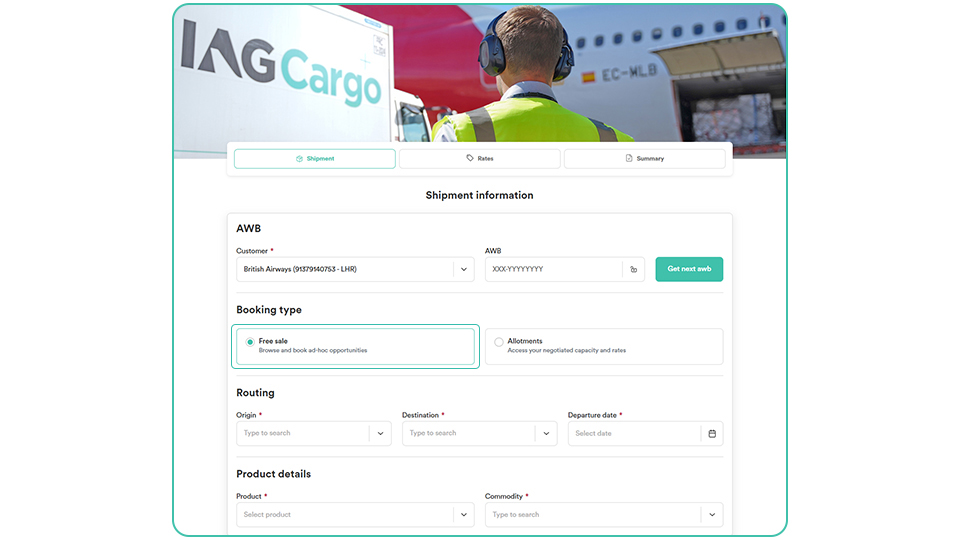
Allotment bookings are contract-based bookings that provide customers with reserved cargo capacity on agreed flights or routes.
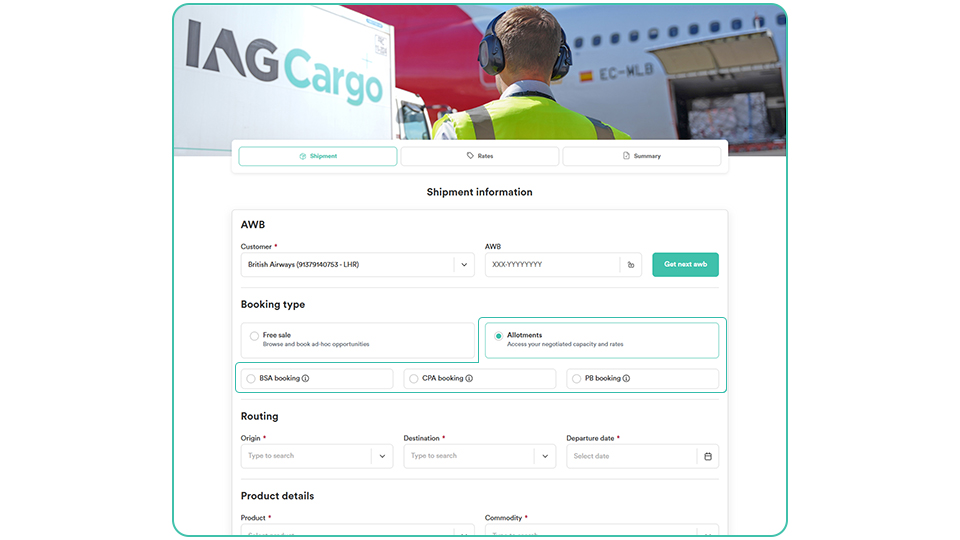
Here you can choose the following options:
Block Space Agreement (BSA): A booking with pre-secured cargo capacity on IAG Cargo services, ensuring consistent uplift, priority handling, and reliable space to keep your shipments moving according to the agreed schedule and terms.
Capacity Purchase Agreement (CPA): A booking with pre-secured contracted rate on IAG Cargo flights, offering guaranteed rates, priority uplift, and dependable, consistent service to keep your shipments moving according to the agreed schedule.
Permanent Booking (PB): A booking that provides fast access to available capacity, priority handling, and reliable uplift, helping to keep shipments moving on schedule.
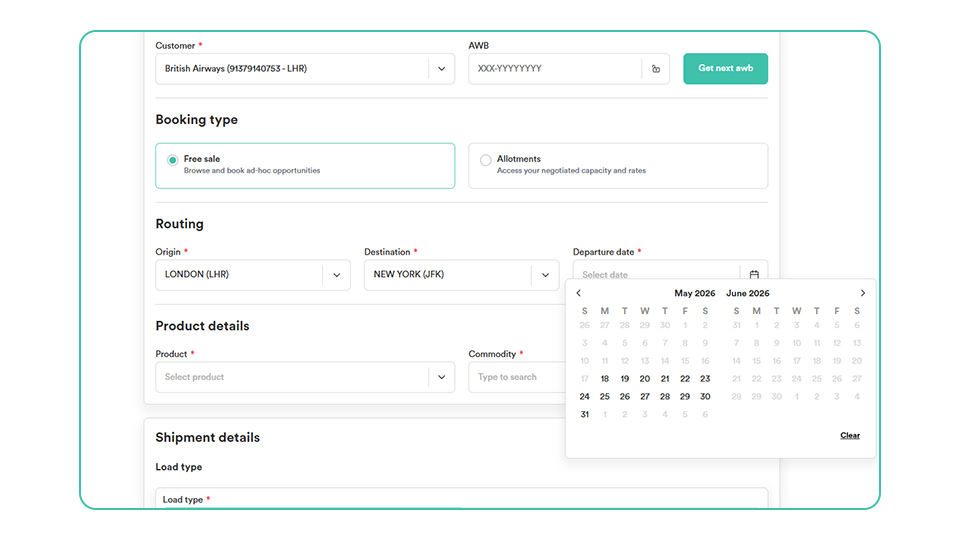
Routing
Within the Routing section, specify your origin and destination, and select your preferred shipping date.
Product details
Choose your required product via the drop-down options.
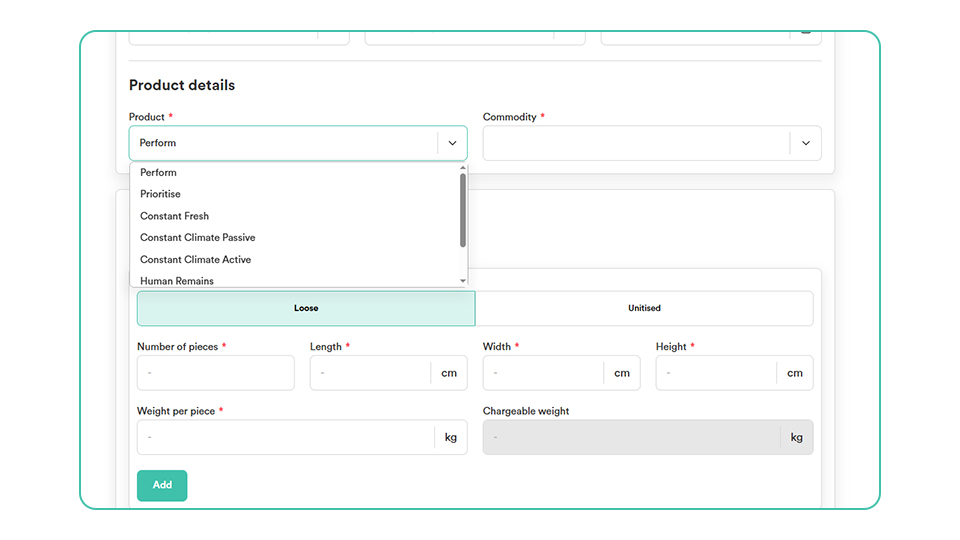
If the product cannot be booked online, you will see a message informing you of this.
Commodity
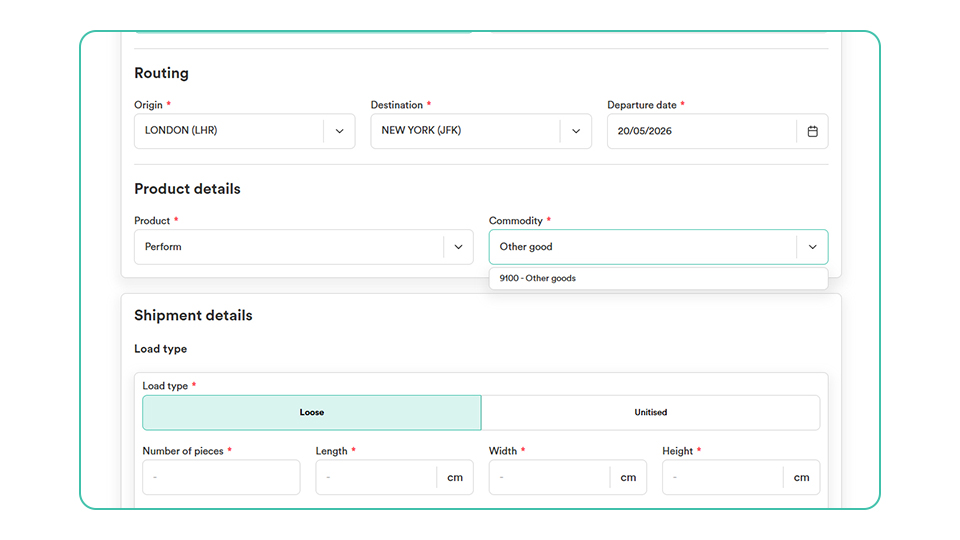
Click into Commodity and select the code that best describes your item/s.
Shipment details - Loose
Within the ‘Load type’ section, enter the details of your shipment.
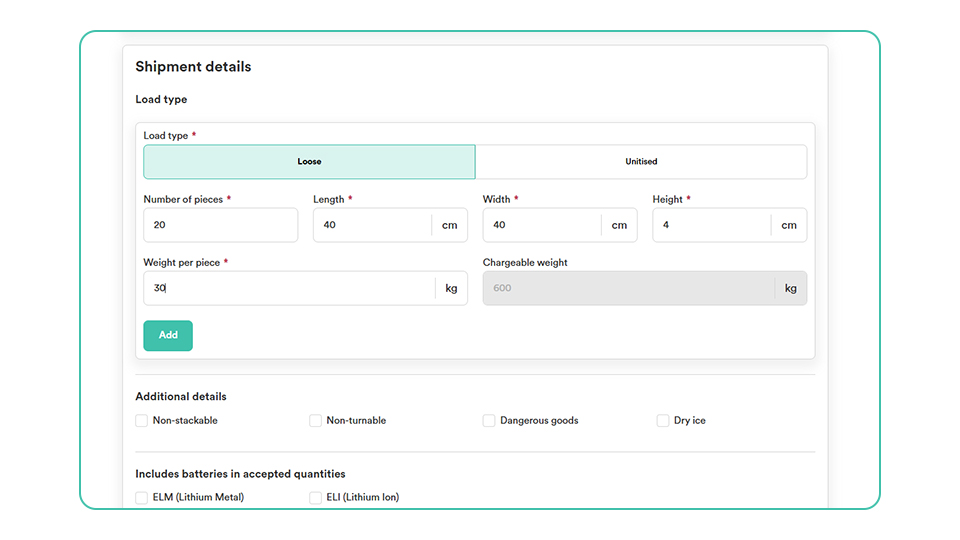
It’s important to note that for loose cargo, you must enter the weight per piece. If you have multiple pieces with different dimensions or weights, you should enter each piece in turn, clicking ‘Add’.
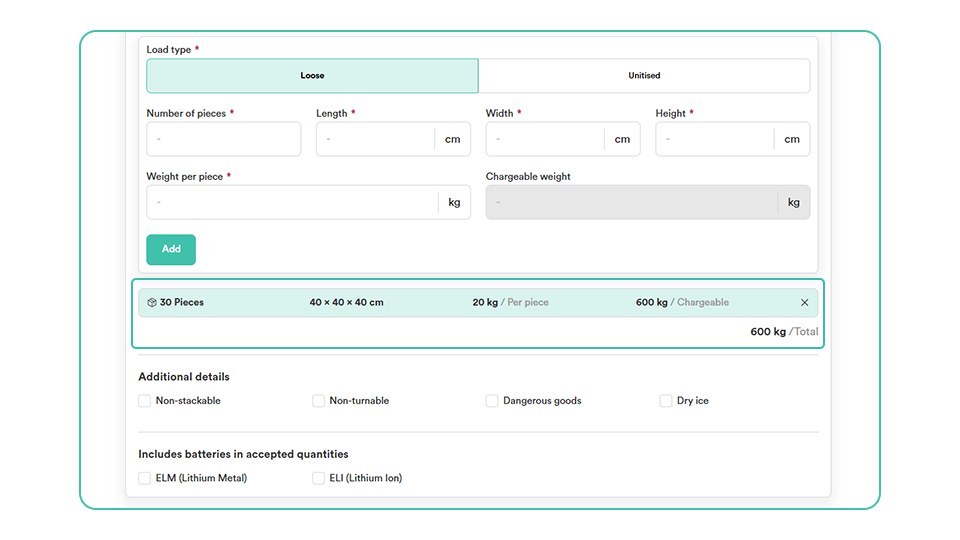
A shipping details line will appear once you have entered the required information and clicked ‘Add’.
You can add multiple load types, and the total chargeable weight will be displayed.
Shipment details - Unitised
For unitised bookings, you can type or select your desired unit type from the drop-down list.
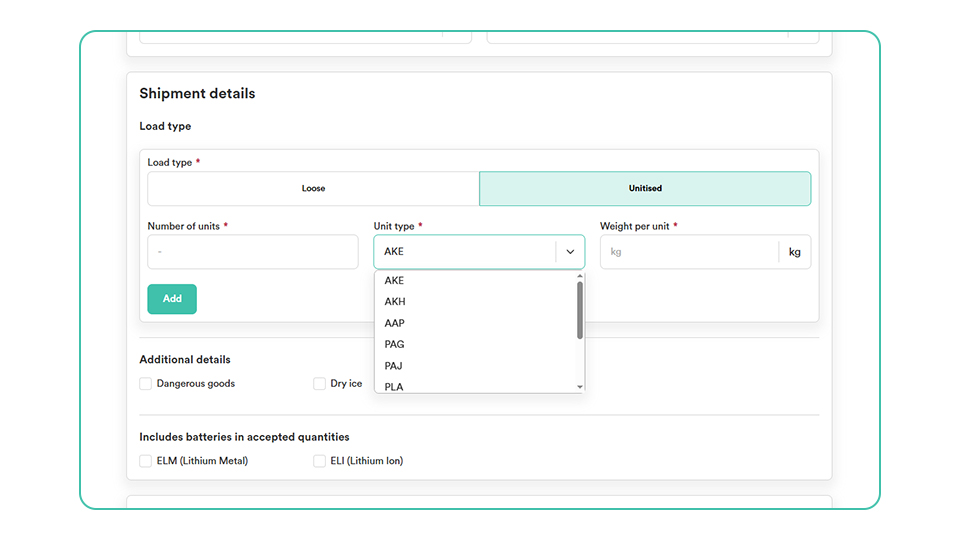
For a standard pallet, please choose 'PMC Lower Deck’ from the list of options.
Additional details
Select the options that best describes your item/s.
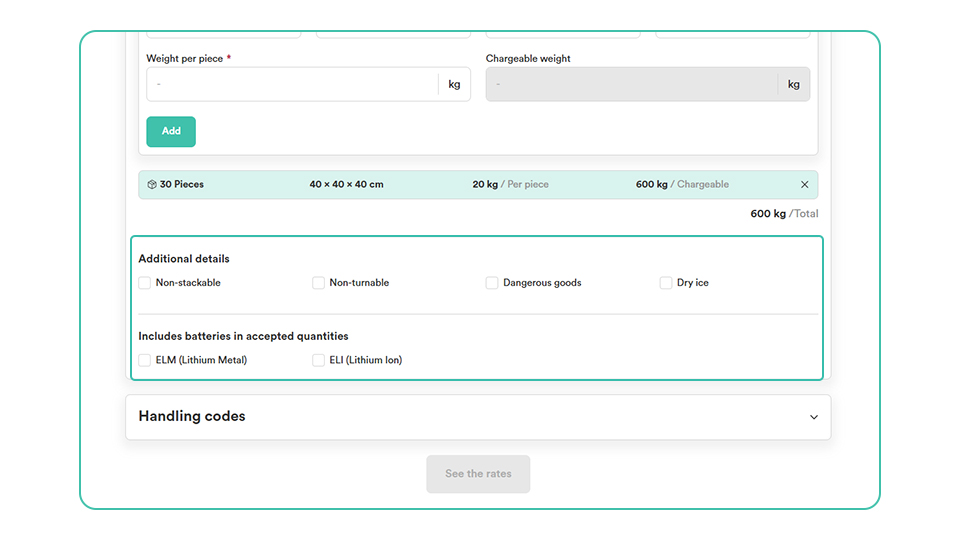
Select from either “Non-stackable“, “Non-turnable“, “Dangerous goods“ or ‘’Dry ice’’.
If your cargo does not allow stacking, be sure to declare this at the time of booking by checking the “Non-stackable" box. For more information, view our Non-stackable (NST) page.
If your booking includes batteries in accepted quantities make sure to select the relevant ‘’ELM’’ or ‘’ELI’’ box.
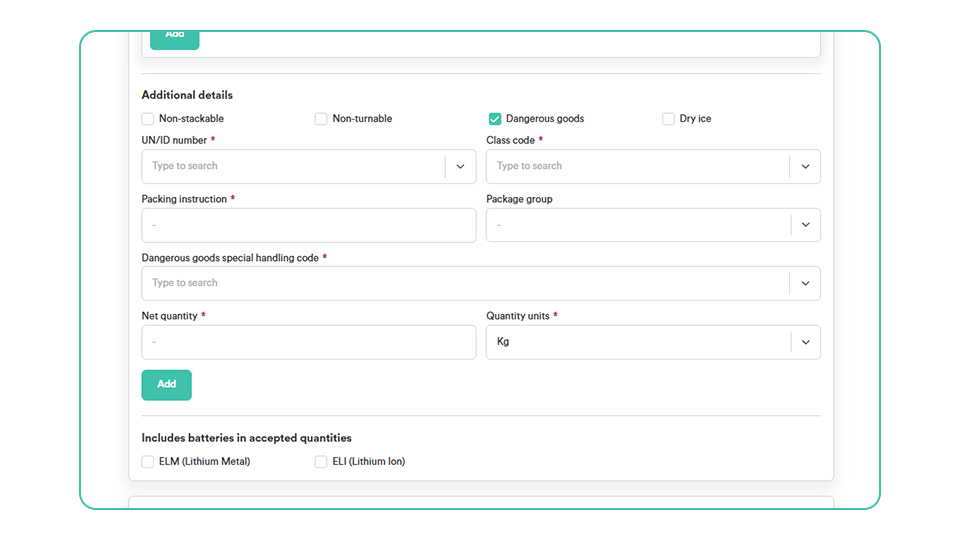
Dangerous goods
If your shipment contains dangerous goods, select the option and complete this section with the relevant classification and handling information. This helps ensure that the shipment meets safety, regulatory, and acceptance requirements before booking.
Handling codes
You can type or select special handling codes from the drop-down list.
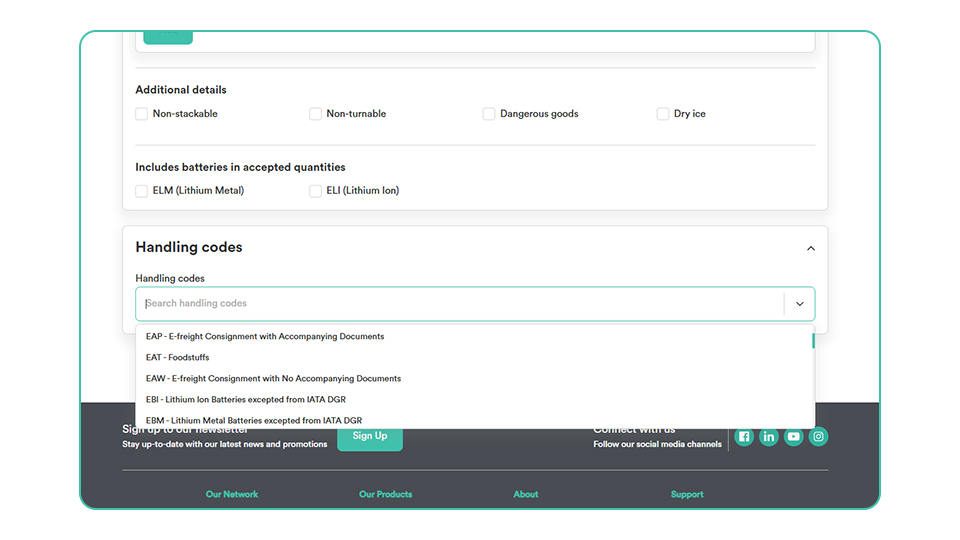
Certain codes may be prepopulated automatically based on the selections made in Package Details.
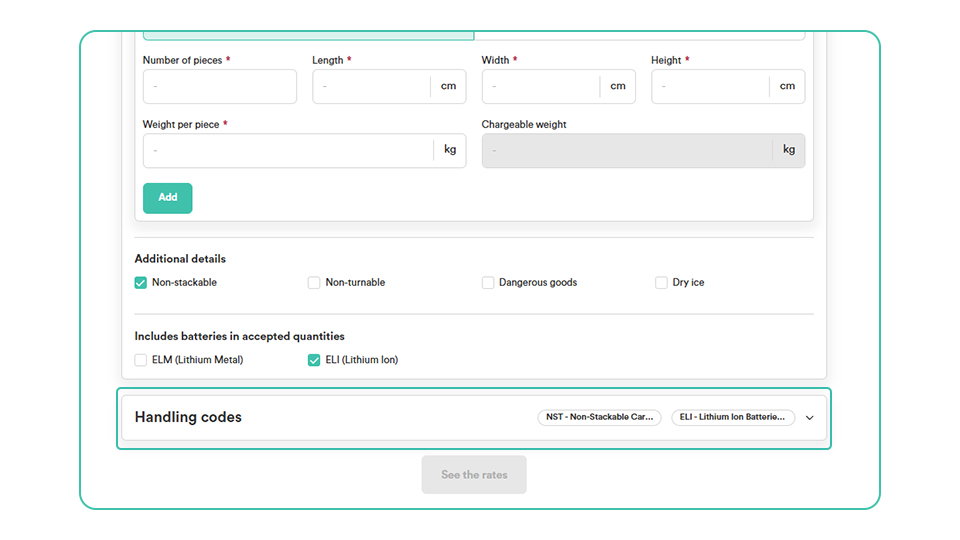
Upon completion, click ‘See the rates’ to proceed to the next page.
Rates - Available routes
Here you will find your search results and the best available routes. If you need to change the routing information or select a different date, you can do so directly from this page. Your shipping details will remain the same, and the updated routes and dates will be displayed accordingly.
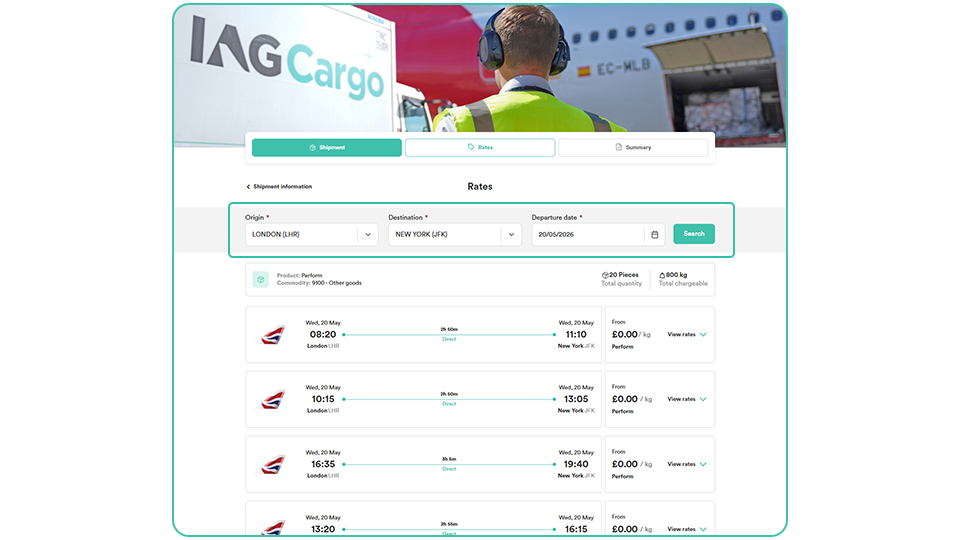
Rates - Rate options
When booking a shipment, you can choose between different rate types depending on your needs.
Here is a preview of some of the different rate options we have available online.
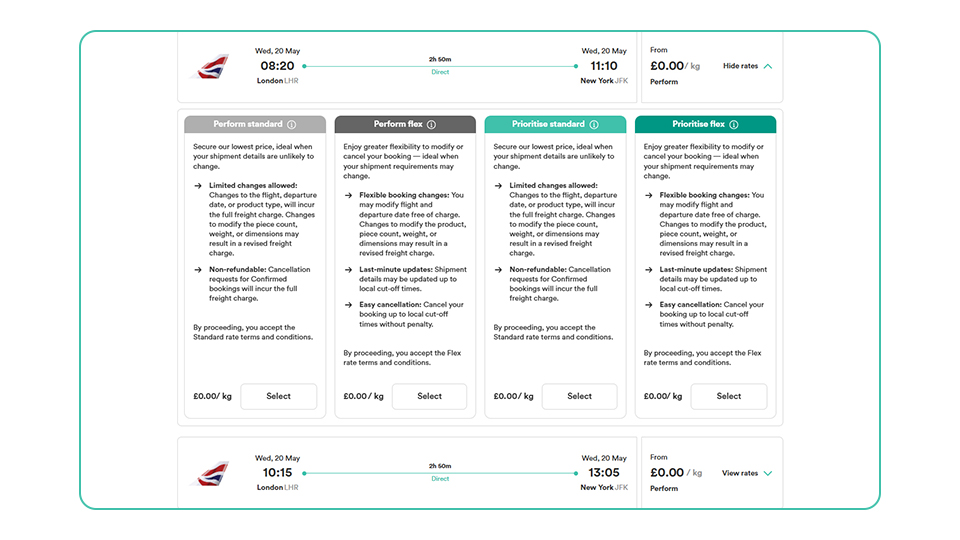
Perform: The ideal solution for ensuring loose and unitised freight is transported quickly and cost-effectively, making it our most versatile and reliable shipping solution.
Prioritise: Our market-leading express solution, with speed and reliability at its core. This service helps global businesses meet urgent demands and keeps essential goods moving efficiently across the world.
Rates - Standard and Flex
Standard: Secure our lowest price, ideal when your shipment details are unlikely to change.
Limited changes allowed: Changes to the flight, departure date, or product type, will incur the full freight charge. Changes to modify the piece count, weight, or dimensions may result in a revised freight charge.
Non-refundable: Cancellation requests for Confirmed bookings will incur the full freight charge.
Flex: Enjoy greater flexibility to modify or cancel your booking - ideal when your shipment requirements may change.
Flexible booking changes: You may modify flight and departure date free of charge. Changes to modify the product, piece count, weight, or dimensions may result in a revised freight charge.
Last‑minute updates: Shipment details may be updated up to local cut‑off times.
Easy cancellation: Cancel your booking up to local cut-off times without penalty.
In order to proceed, select the rate type that best fits your needs.
Summary page
The summary page displays all the booking details in one place, allowing you to review the information before proceeding.
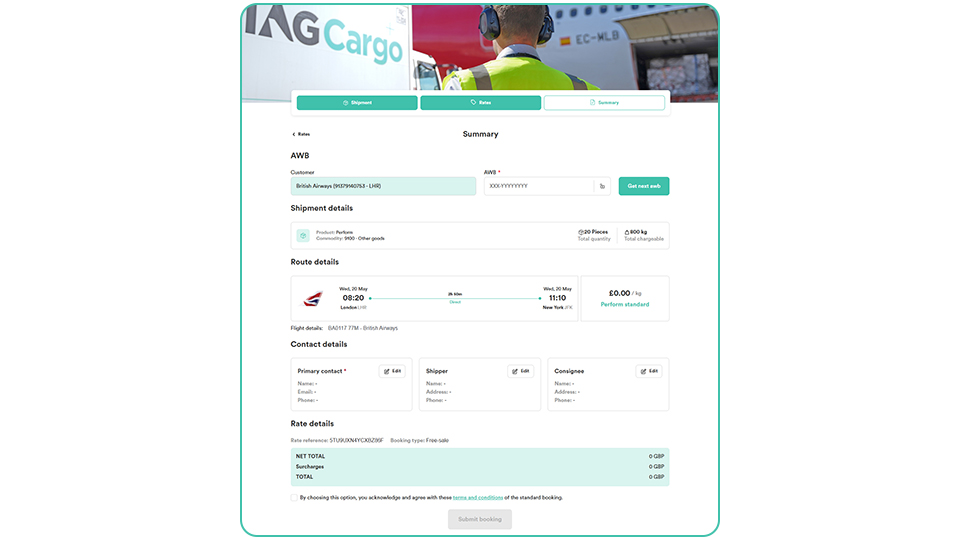
AWB
At this stage, an AWB is mandatory to proceed with the booking.
Enter an AWB in the format ‘125-0000000’ or ‘075-0000000’.
Alternatively, you can select the ‘Get next AWB’ option which will display a stock selection for you to choose from.
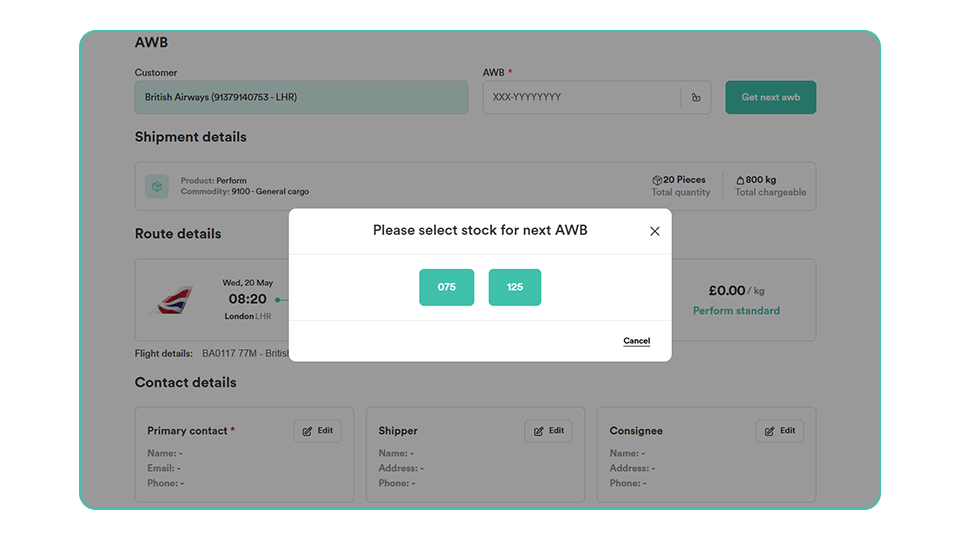
Upon selection, the AWB will lock.
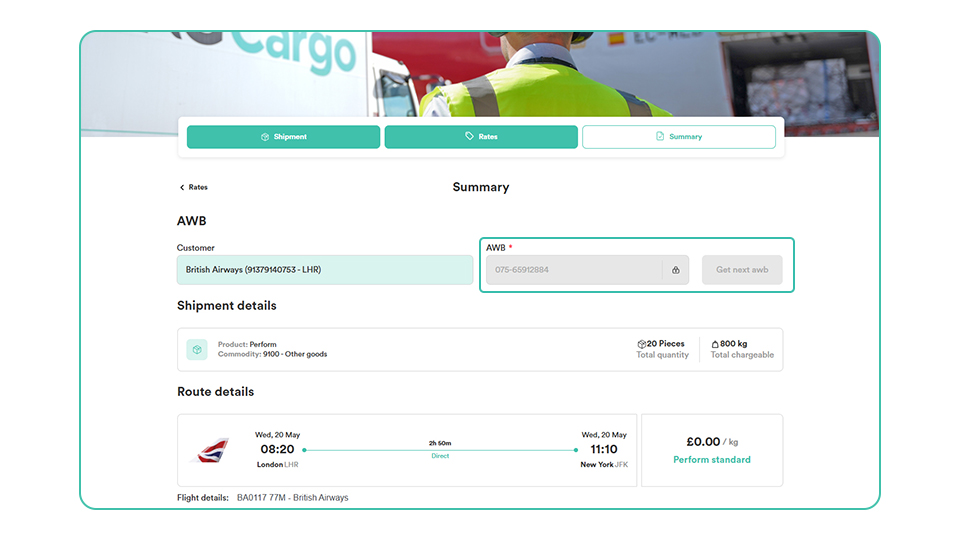
Contact details
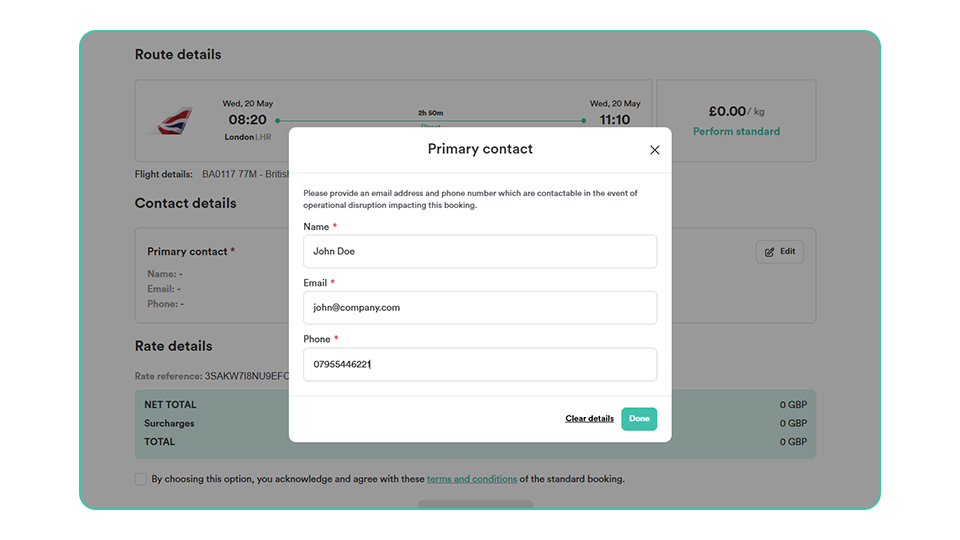
A primary contact is also mandatory at this stage. Enter your contact details so we can contact you in the event of changes to your booking.
Bookings made for Live Animals, Human Remains and Constant Climate require mandatory shipper and consignee contact details at time of booking.
Once you have filled out the contact details, click ‘Done’.
Rate details
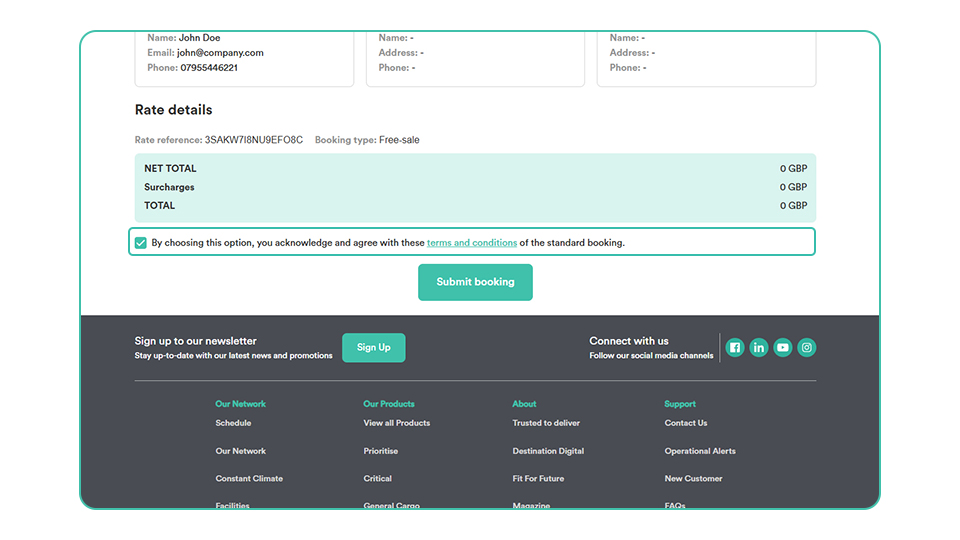
Review your rate details, select the check box and click ‘Submit booking’ to complete.
Booking confirmation
You have now successfully made your booking, a summary will appear on your dashboard, at which point you will receive a confirmation to the email address linked with your IAGCargo.com account.
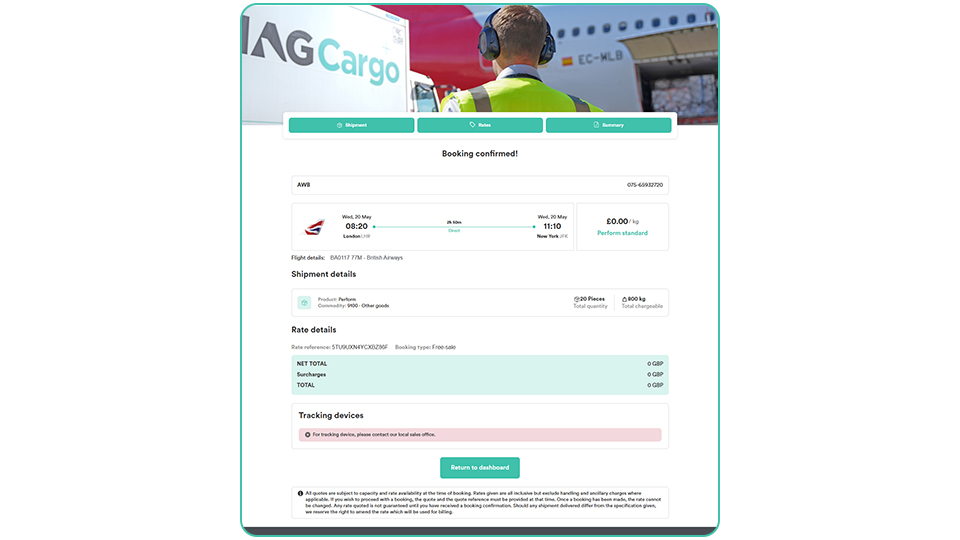
Manage bookings
Booking details
It is easy to change or cancel a booking online and this is all done through your dashboard.
Select the AWB that you would like to amend on your dashboard and click on a booking to expand and see more options.
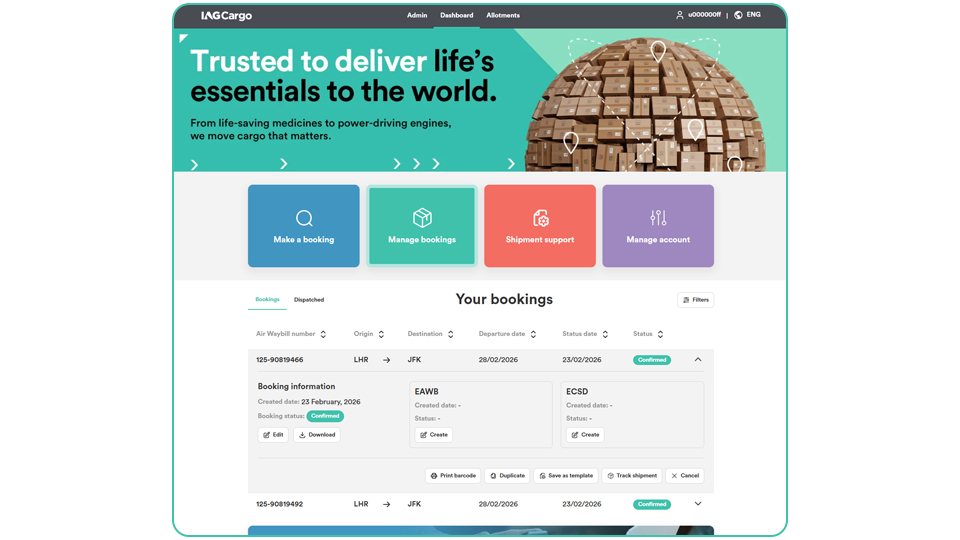
To change a booking, click on ‘Edit', this will retrieve the booking details and take you back into the eBooking platform where you can click into the section you would like to edit and enter in the new details.
Cancel booking
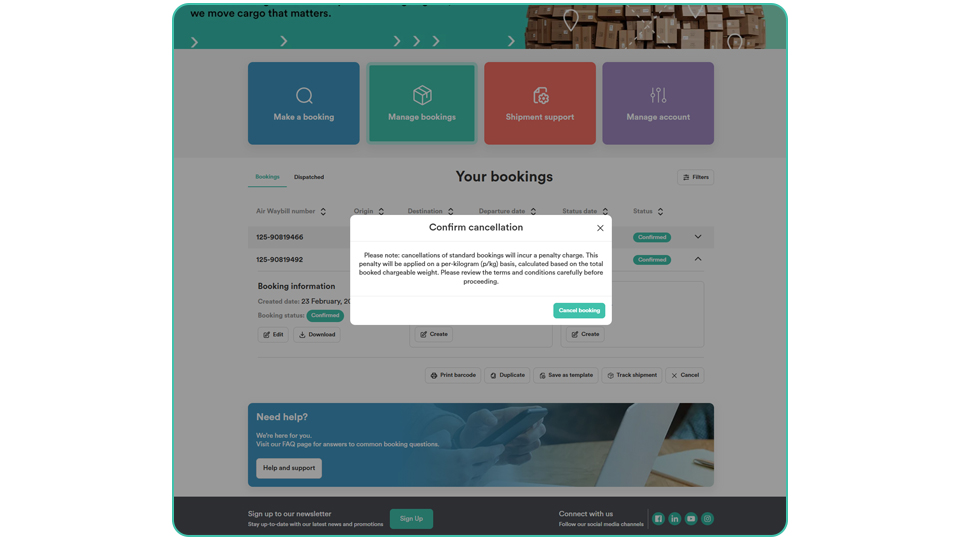
To cancel a booking, click on the ‘Cancel' button within the booking. You’ll see a message explaining what will happen if you cancel, depending on your booking type. If you wish to proceed, click on ‘Cancel booking' and it will be removed from your dashboard.
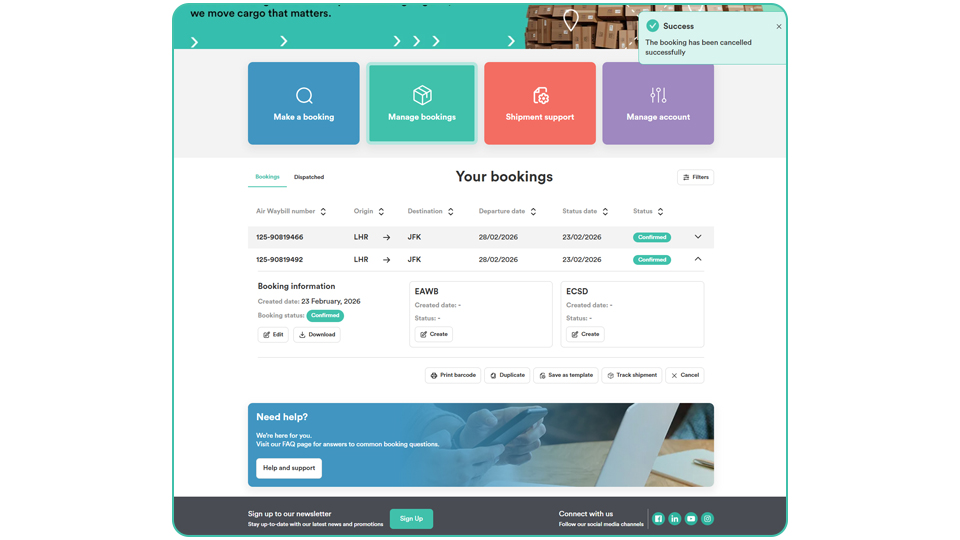
Cancel booking confirmation
To confirm cancellation of your booking, a message will prompt letting you know that the booking has been cancelled successfully.
My templates
Creating your template
Repeat bookings are even easier, with tailored templates allowing you to bulk book shipments for an extended period. This feature was designed for allocations but can also be utilised with any booking type.
Start by using an existing booking from your dashboard or if you would like to create a new one, click ‘Quote and Book’.
To create a template, click the booking on your dashboard and click 'Save as template'. You will have a field appear so that you can give the new template a suitable name that is clear to you.
The system will store all the important details, such as unit type, unit weight, commodity and product.
Using 'My templates'
Templates can be accessed by clicking the 'My templates' link within the Make a booking section.
Within the 'My templates' section, you will be able to view all of your saved templates.
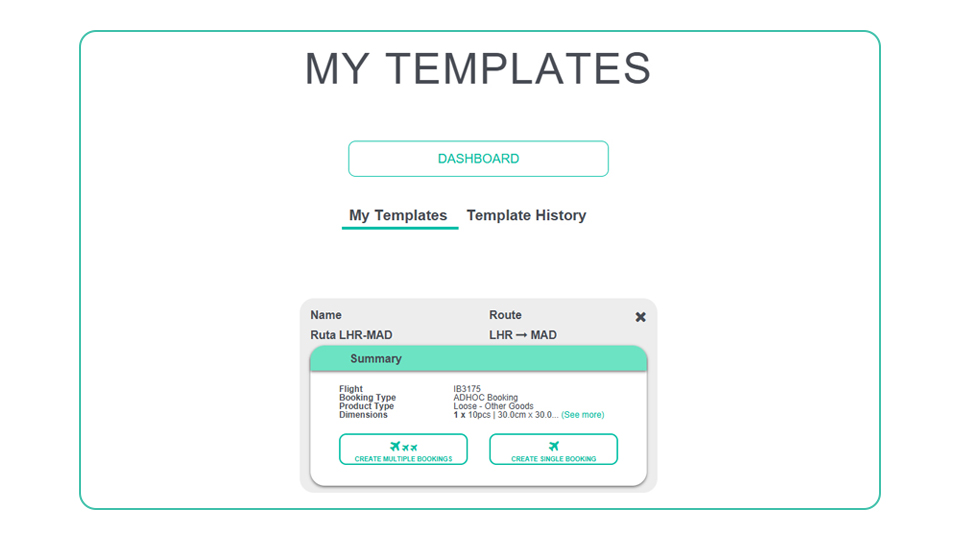
You can choose to book multiple shipments using the same template.
Create multiple bookings
Select 'Create multiple bookings' from your chosen template.
This will prompt you to enter some dates and days of the week.
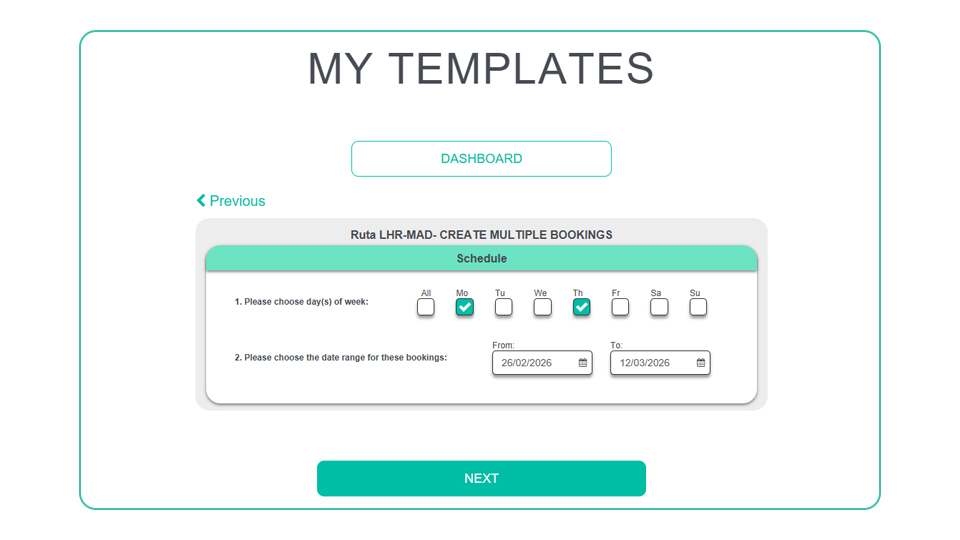
This will be the period you wish to book the allocations for and the days of the week on which the allocation is to be booked.
Booking period is usually within a month but can be set up for any length of time.
Once you have selected the dates a new screen will open, allowing you to enter the AWBs. You may want to refer to the date column, to match the AWBs with the correct dates.
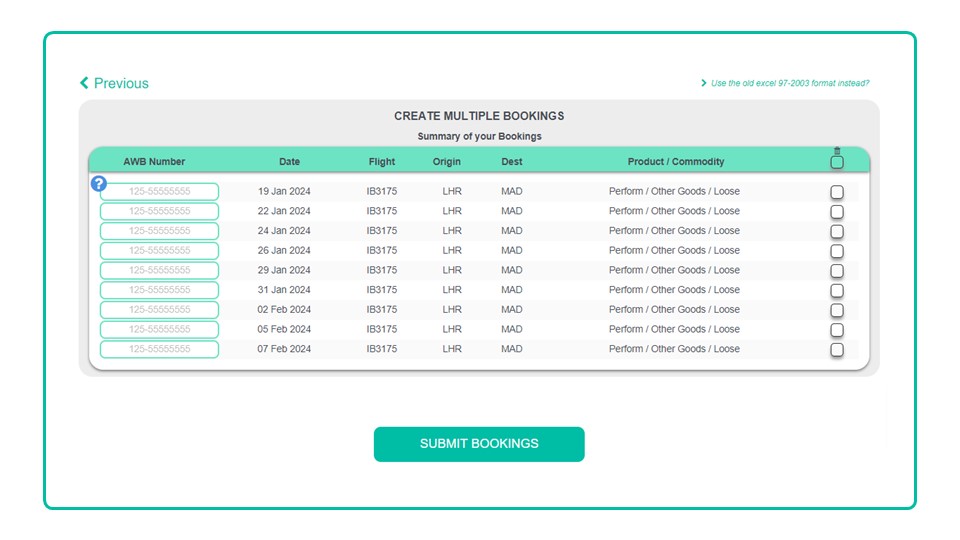
To save time you can copy and paste the AWBs into this section. When you have completed the AWBs click 'Submit bookings’.
It is important to use new AWBs in a template as re-using AWBs from a previously cancelled booking can cause a template booking error.
Bookings departing within 12 days
For bookings departing within 12 days, your allocation bookings will appear on your dashboard as Scheduled for the first hour after submitting them, after which they will show as Confirmed. Any bookings due to depart later than this will appear as Scheduled until 12 days from departure.
If you have just made your template for a flight departing within 12 days and your booking hasn't yet been confirmed, it can take up to 90 minutes to be automatically processed.
Further guidance
If you need more information, please visit our FAQ page.